Watch it in the dashboard
semula has a small web dashboard at /ui. Open http://127.0.0.1:8080/ui/ and it lands on the live log of the project with the latest call.
The live log
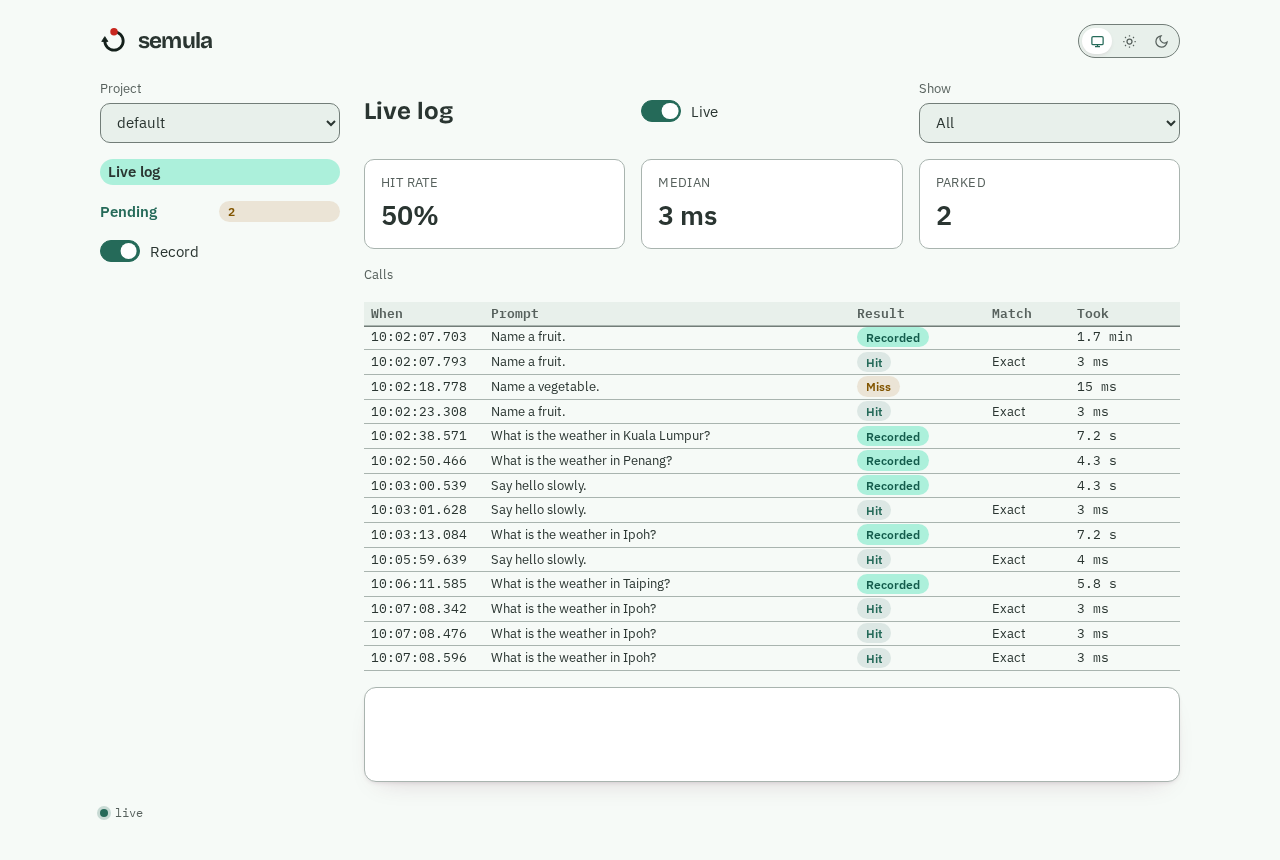
Every call appears as it happens, in every open tab. The three numbers above the table cover the last 30 minutes. Pick a row to see the request, the answer, and which tiers said yes or no. The Record switch in the sidebar sets the mode of the project you are looking at, and it is kept across restarts.
The Pending screen
When a project is recording, parked calls are listed on the Pending screen, and the sidebar shows how many are waiting.
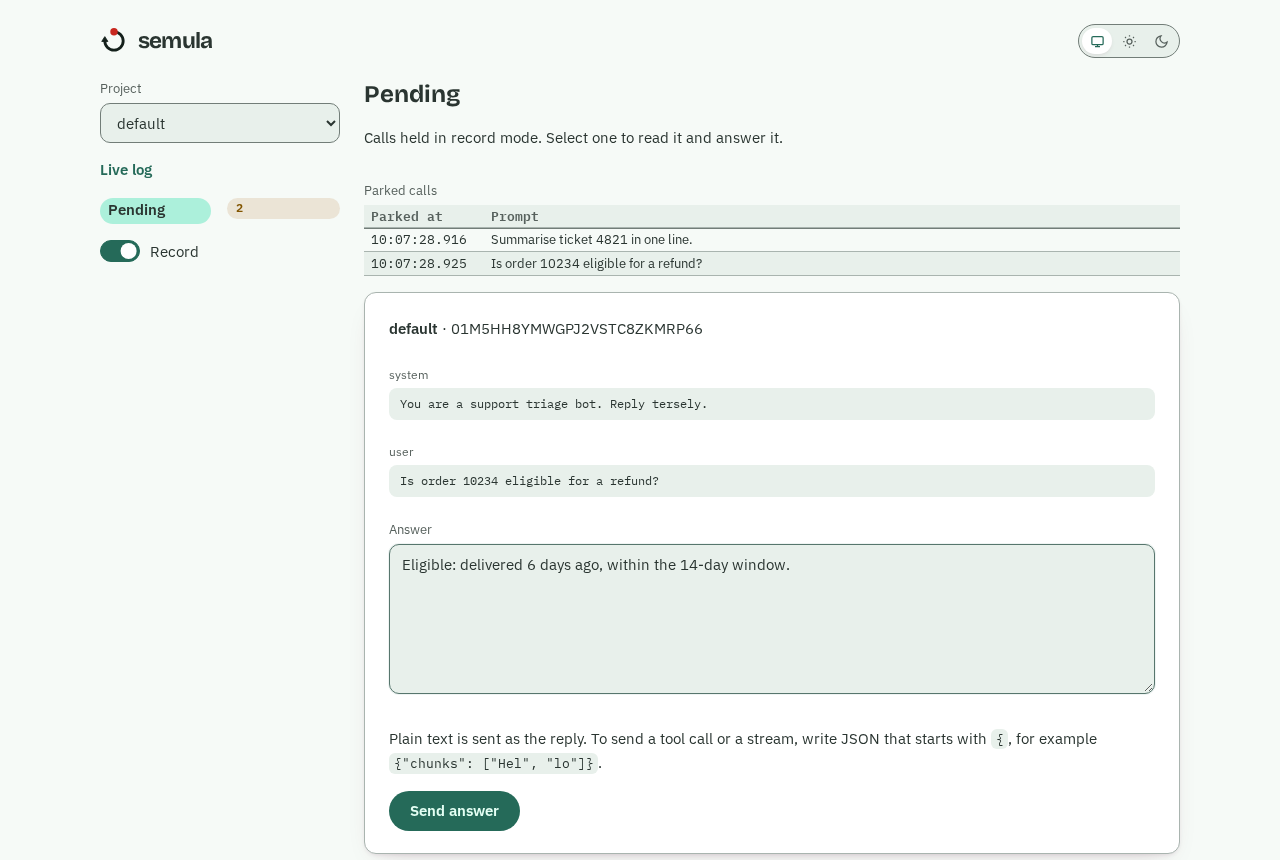
Select a call to read the whole request: the system prompt, the messages and any tools offered. Type the answer and press Send answer. The held call is released at once.
- Plain text is sent as the reply.
- Anything that starts with
{or[is sent as JSON, so you can write a tool call or{"chunks": [...]}. - If semula rejects the answer, the reason appears under the box and the call stays held. Fix it and send again.
- A call answered somewhere else, by an agent or the CLI, leaves the list on its own.
Entries
The Entries screen lists what a project has recorded: the prompt, how often it has been hit, how many answers it holds, and flags for pinned, tool-call and aliased entries. Search by text, filter (pinned, never hit, has tool calls, has aliases) and sort (most hits, changed lately). New recordings appear as they are made.
New entry writes one before any call: the prompt, an optional system prompt and tools (a JSON list), and the answer. A pin keeps agents off it. If the answer is rejected, or an entry for that prompt exists, the reason is shown in the dialog and nothing is saved.
Select a row to open the entry at its own address (/ui/projects/<project>/entries/<id>), so you can paste the link to a colleague. It shows the request, every answer and the history of changes.
Fix a recording by hand
The same page edits the entry. Change the text in Edit answer and press Save answer. Plain text is the reply; start with { to write a tool call or {"chunks": [...]}. The answer is checked exactly as it is when an agent sends it, and a rejection appears under the box with nothing saved.
- Pin and Unpin protect the entry from agents. Your own edits go through a pin.
- Add another answer stores a second answer; Pick chooses
first,sequenceorcycle. - If someone else changed the entry while you were typing, saving says so, keeps your text, and Reload shows their version. Your edit never overwrites theirs.
- Delete entry asks first.
Review
The Review screen lists near misses (the badge in the sidebar counts them). Select one to see the new prompt next to the recorded one, with the changed words marked, and the recorded answer underneath. Approve serves that prompt from the entry from now on; Reject keeps the pairing from ever coming back.
Playground
The Playground asks what semula would do with a prompt in the project you are looking at, without sending it: the verdict of each tier, the answer it would serve, or the nearest recorded prompt when nothing matches. It also says whether the call would be parked (the project is recording) or fail with 424 (it is replaying). Nothing is logged and no hit is counted.
Good to know
The dashboard is built on the first visit to /ui, so the server starts as fast as ever. SEMULA_UI=off hides it.
No dashboard behind an API key
A browser cannot send an Authorization header on a page load. When SEMULA_API_KEY is set, the dashboard switches itself off. Use the CLI, MCP or REST there, or leave the key off and keep the port on loopback.
That is the tutorial. For installing differently, running semula as a standing service, and keeping your recordings safe, see the guide.